
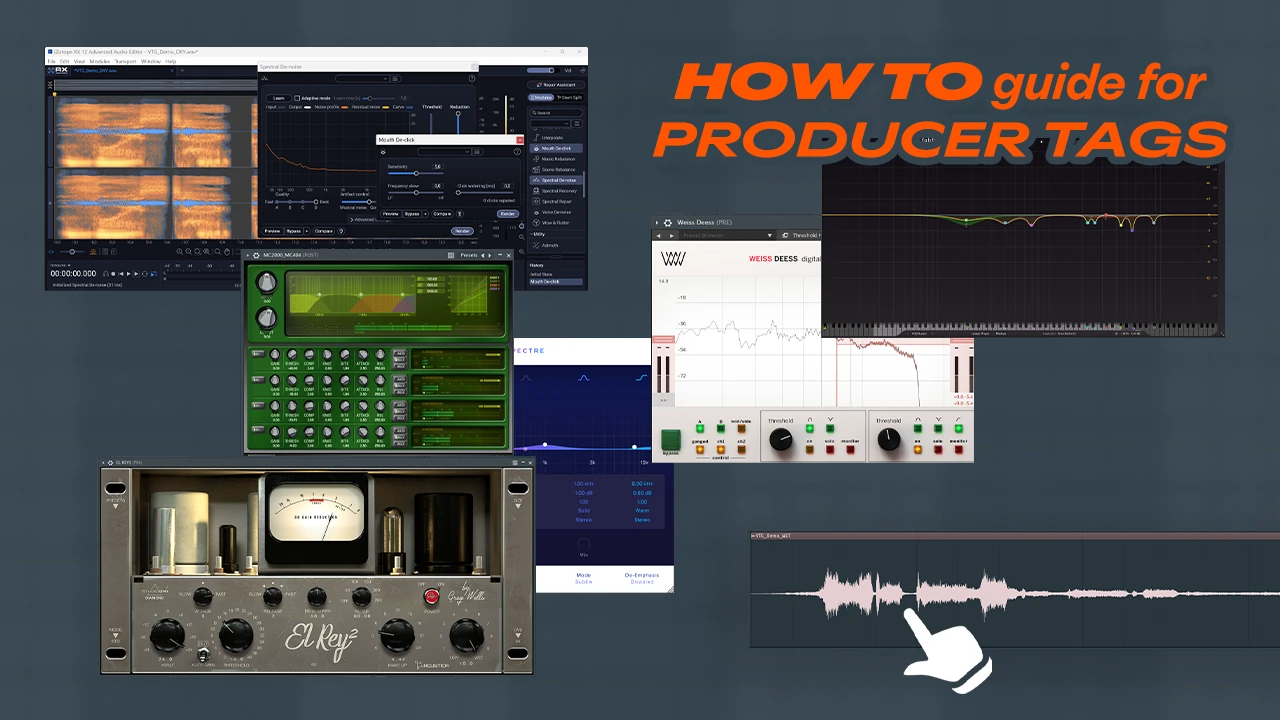
From a plain voice to a finished tag
Transcript / audio description
Spoken words: “Voice Tag Gods.” The supplied dry voice with silence added to align the phrase with the finished WET tag.
Transcript / audio description
Spoken words: “Voice Tag Gods.” The supplied final WET tag, including its full effect tail.
2. Edit the take and clean up distractions
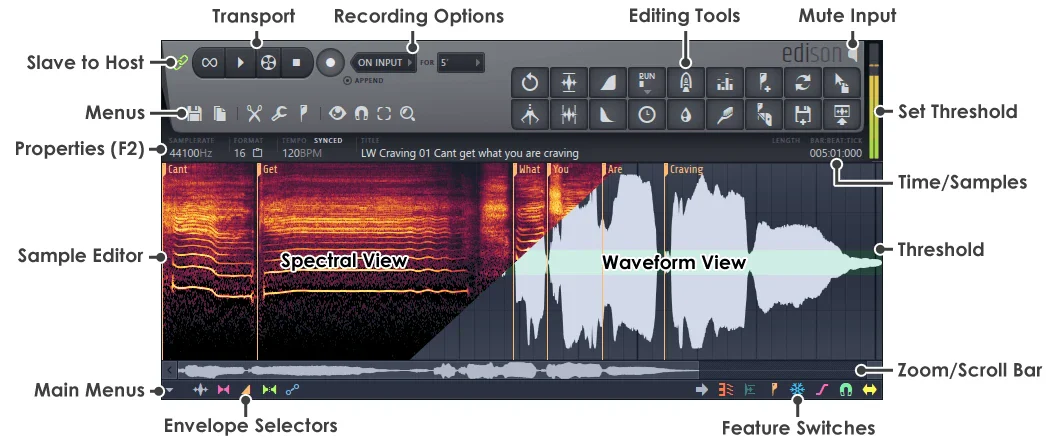
Listen once with the beat, then solo the voice. Choose the strongest complete take and trim the unused space. Keep the beginning of the first consonant and the end of the last one: an “s” or “f” can look like quiet noise in a waveform, even though it belongs to the name.[5]
Add a tiny fade at each cut edge to avoid clicks. Try 2–5 milliseconds first, then listen to the full word at normal speed. A millisecond is one thousandth of a second. If the fade makes the first letter sound late or missing, shorten it or move the cut earlier. Apply the same check to joins between takes.[6]
Turn down a breath that distracts from the phrase, and lower a word that jumps out. This local volume adjustment is called clip gain. For example, if “TAG” overwhelms “Voice” and “Gods,” lower that word a couple of decibels before adding a compressor. Keep the delivery’s intended accent.
Match the repair to the problem
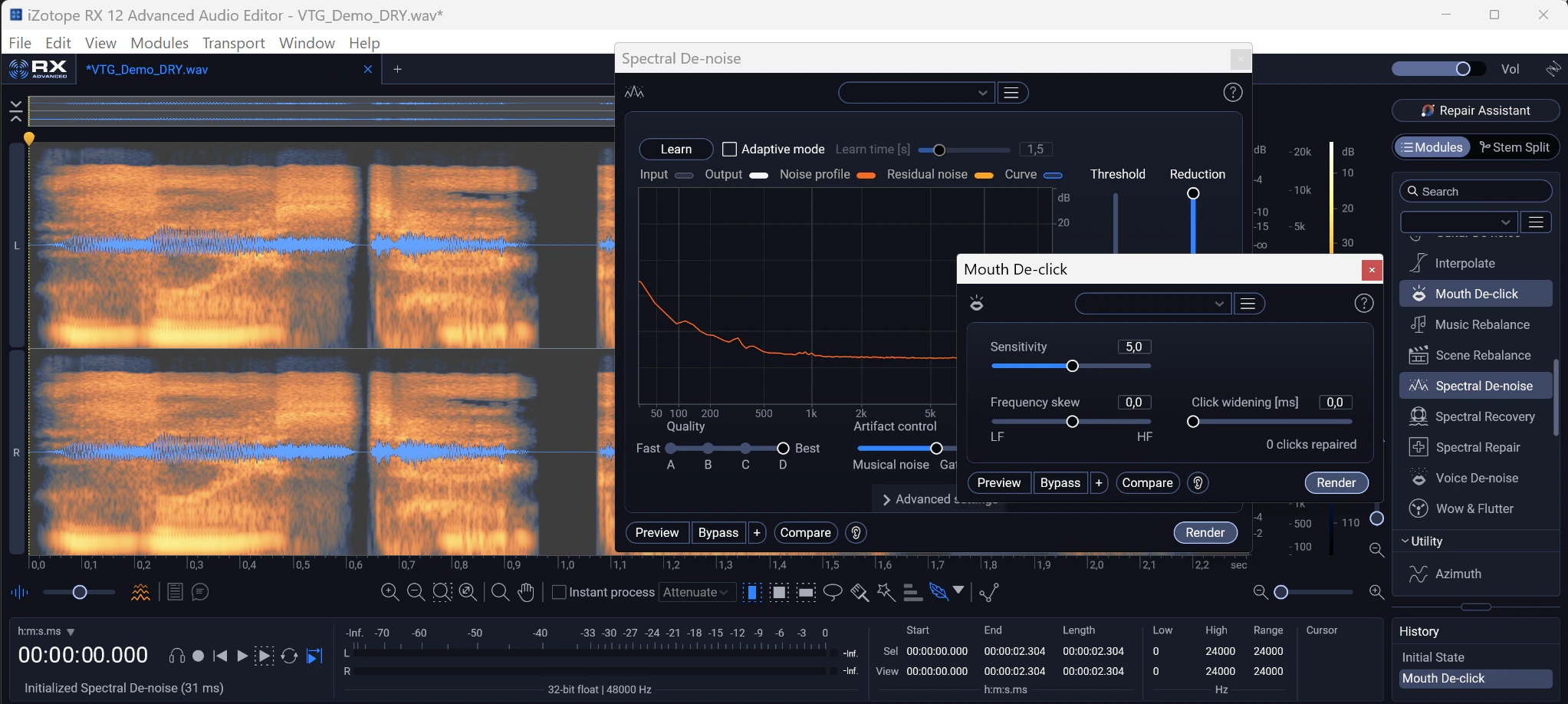
A click in a gap can be cut out and faded. A click inside a word may need a declick tool or a better take. Use noise reduction gently for steady hiss; back off if the voice becomes watery or metallic. A gate will not remove noise underneath the words.[7]
3. Shape the voice with EQ
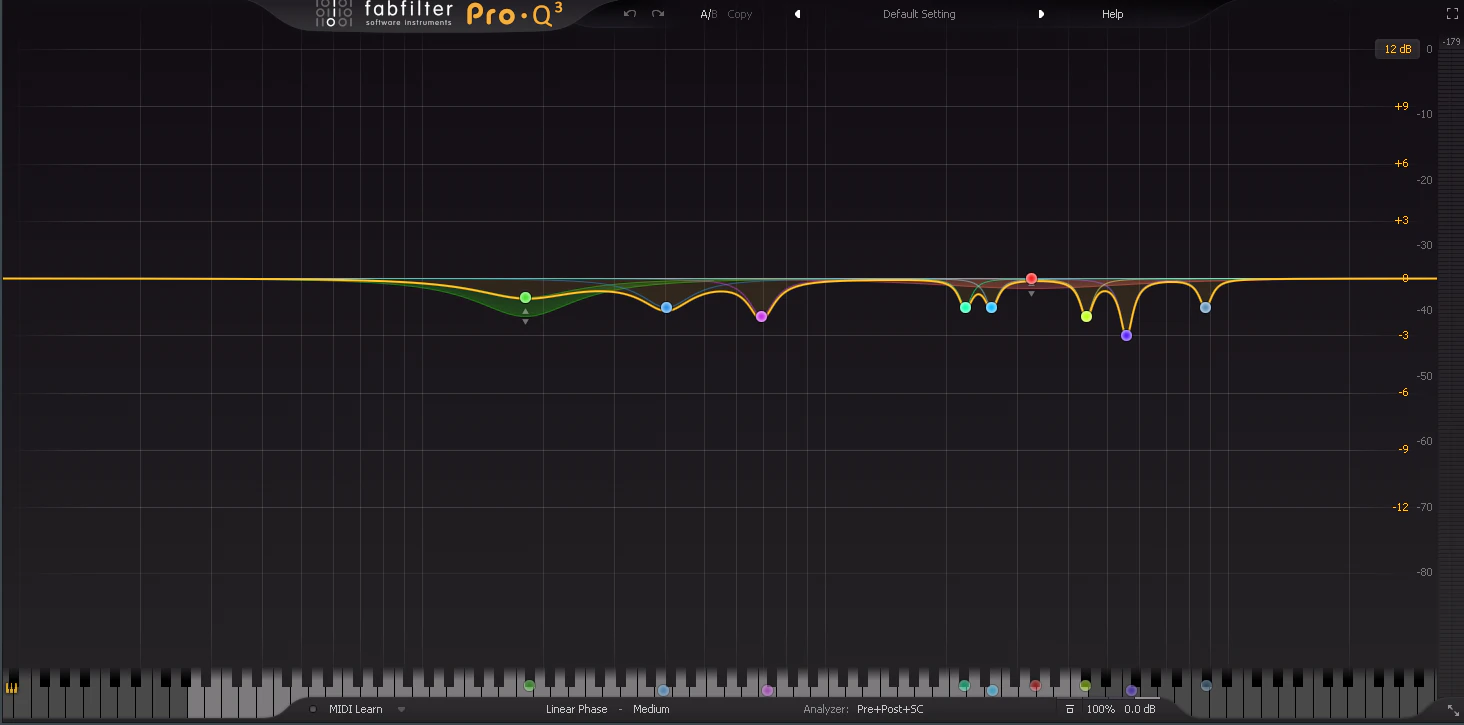
EQ turns parts of the tone up or down. In FabFilter Pro-Q 3, shown here, frequency selects the area, gain sets the amount, and Q controls the width of a bell-shaped band. Higher Q means a narrower adjustment. Your DAW’s EQ can make these adjustments too.[8]
Remove rumble while keeping the voice’s weight
Add an EQ to the vocal track. If there is low rumble, choose a high-pass filter, sometimes called a low cut. Raise its cutoff slowly from the bottom of the range. Somewhere around 60–100 Hz is a starting area to explore; move back down when the voice starts losing body. If the take has no rumble, leave the filter off.
Make one useful tonal change at a time
For a boxy or harsh sound, move a bell band through the suspected range and try a small cut, such as 1–3 dB. Narrow the band if the whole voice loses body. Check competing instruments before adding upper-mid boost.
Bypass the EQ at a similar volume with the beat playing. Keep a change when it helps the words come through.
4. Control loud words and sharp esses
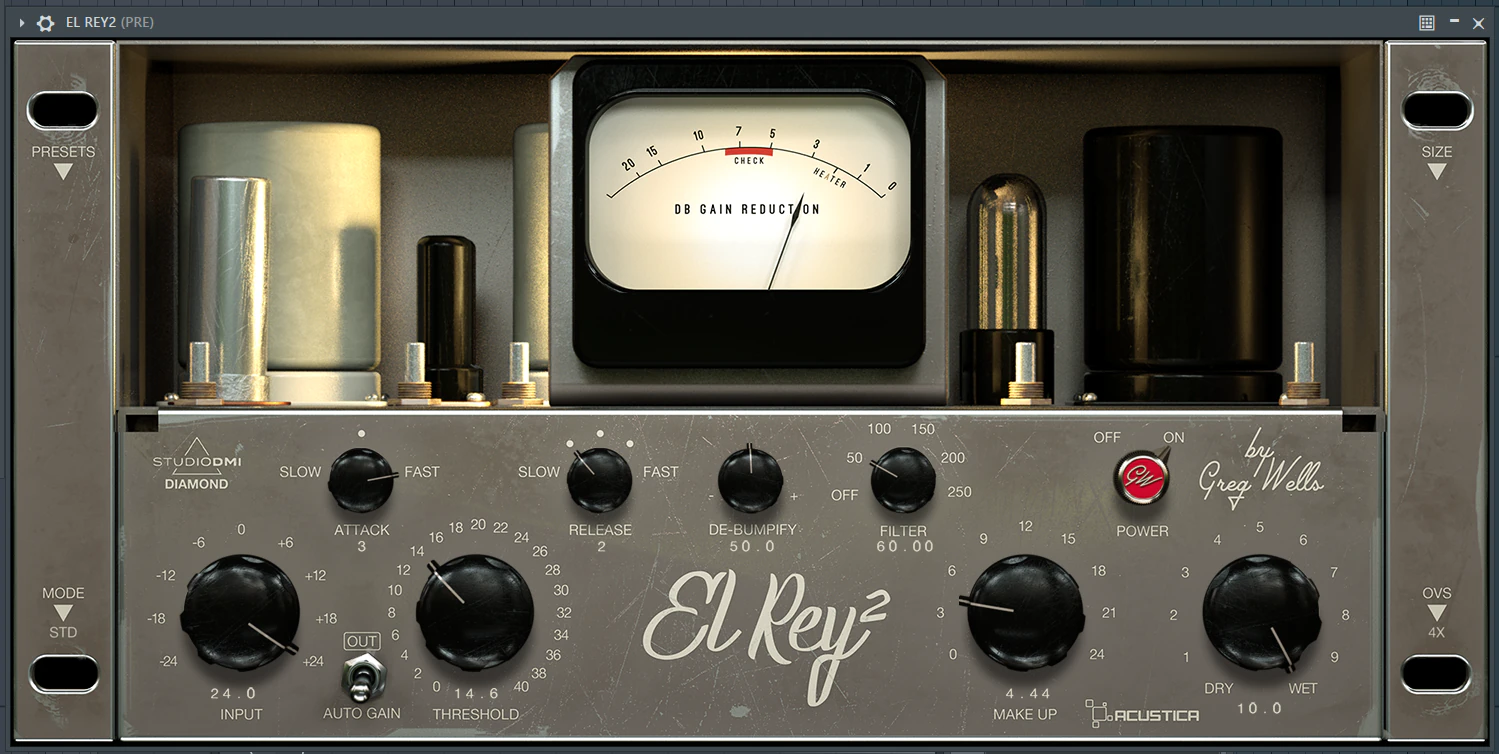
A compressor reduces the level when the voice crosses its threshold. Use it if one volume setting leaves some words buried and others too loud. An already even take may need very little.[9]
Dial in gentle compression
Start with moderate control
If your compressor has a ratio control, try around 3:1. Set attack and release by listening to the starts of words and the gaps between them. El Rey 2 uses Slow to Fast controls; other compressors may display times in milliseconds.
Lower the threshold while the phrase plays
Stop when louder words show a little gain reduction, perhaps 2–4 dB. Gain reduction is how much the compressor turns down the signal. Use less if the take is already even.
Listen to the starts and gaps
If the first consonant loses bite, try a slower attack. If the next word stays suppressed, try a shorter release. If the level flutters or sounds rough, ease the reduction or lengthen the release.
Match the output level
Use output or makeup gain to compare with the bypassed voice at similar loudness. Keep the setting that makes the phrase steadier while preserving its delivery.
Control a troublesome frequency range
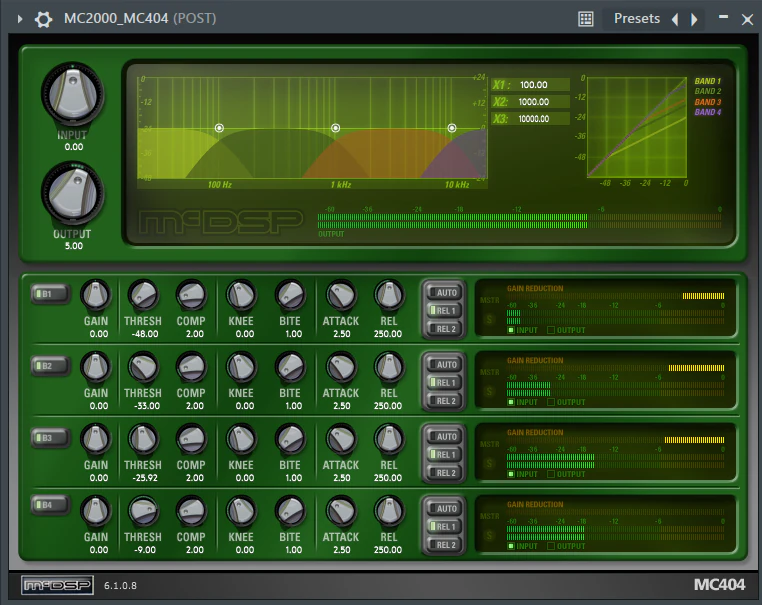
If low notes boom while the rest of the voice stays even, try a multiband compressor. It lets you reduce one frequency range when it gets loud. McDSP MC404 splits the signal into four bands with separate compression controls.[10]
Choose the range causing the problem, then lower that band’s threshold until it catches the louder moments. Compare with the band bypassed at a similar volume. If the whole voice loses weight or starts pumping, ease the reduction. An even recording may not need this extra stage.
Soften the “s” without losing the letter
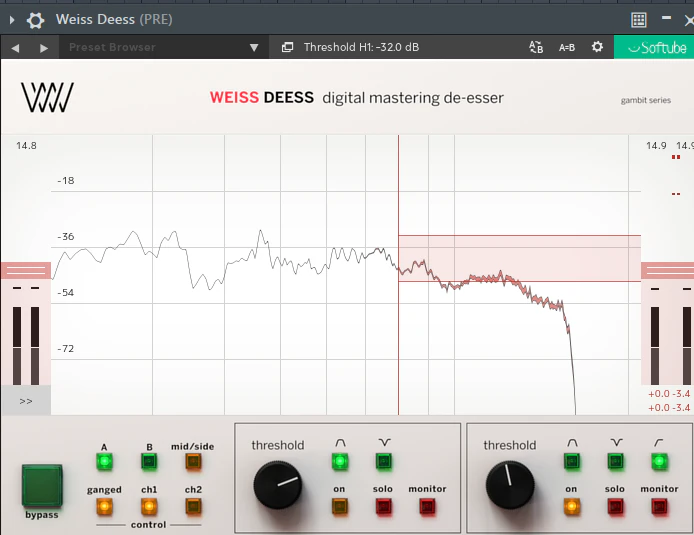
Lower one sharp letter with clip gain. For repeated sharp “s” or “sh” sounds, try a de-esser. Use its Listen control, if available, to find those sounds, then turn Listen off and reduce them gently. If the performer starts sounding lisped, ease the reduction.[11]
In Weiss Deess, Solo plays the selected frequency band; Monitor lets you hear the material being removed. Use them to check that you are catching the sharp letter, then switch them off and judge the full voice.[12]
5. Add space without covering the words
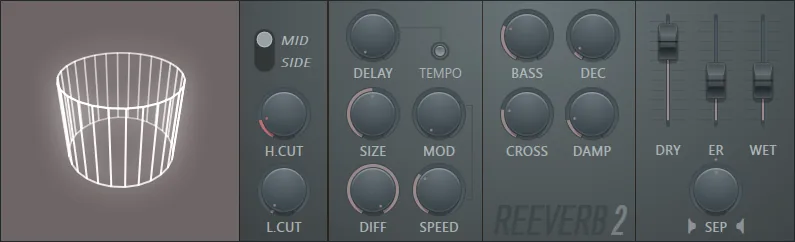
Reverb is the wash around a sound, like a voice continuing in a room. Delay produces separate repeats. Choose a short space when you want a close, clear tag; leave more room for a long tail when the intro is sparse.[13][14]
Set the reverb’s blend, wait and tail
Open a reverb and try a room or plate sound. Start with a low wet mix, about 20–40 ms of pre-delay, and a decay around one second. Wet mix controls how much effect joins the original. Pre-delay is the wait before the reverb starts. Decay controls how long the tail continues.[15]
If the first letter blurs, lower the wet level or add a little pre-delay. If the tail covers the drums, shorten the decay or turn it down at that point. Filter bass out of the reverb if the space gets boomy, and soften its highs if every “s” leaves a splash. You can change the effect’s tone while keeping the dry voice full.[16]
On the vocal track, keep the dry voice in the mix. On a separate effect return, set the effect fully wet, because the original already has its own path. A send controls how much voice feeds that return. Route the voice and returns to a tag bus if you want one fader to move them together. Check for duplicate routes if the voice suddenly gets louder.
Hear a reverb tail and a repeating delay
Transcript / audio description
Spoken words: “Voice Tag Gods.” The source voice with a reverb treatment.
Transcript / audio description
Spoken words: “Voice Tag Gods.” The same source voice with a repeating delay treatment.
Listen after the words finish: Reverb leaves a wash; Delay leaves individual repeats. The waveforms come from these files, so you can seek into each tail and compare the space it needs.
Make the echo answer the phrase
Enable tempo sync on a delay and try an eighth note or dotted eighth. Start with modest feedback, around 20–30%, and keep the echoes quieter than the lead. Feedback creates further repeats; wet level changes their volume. Lower feedback if the echo lasts too long, and lower wet level if it is simply too loud.
If every syllable repeats into the next, apply delay to a copy of the last word, or automate the delay send to rise only for that word. Filter the repeats so they leave the main voice clear. At 140 BPM, a quarter note is about 429 ms, an eighth 214 ms, and a dotted eighth 321 ms. For another tempo, divide 60,000 by BPM for the quarter note.
6. Choose an effect people will recognize
Start with a take whose rhythm and expression already work. A strong delivery may need only a little processing. Save a clear version, try an effect on a copy, then switch back to the plain phrase to judge what it adds.[2]
A rising lead-in or a rhythmic opening
Transcript / audio description
Spoken words: “Voice Tag Gods.” A reversed reverb swell leads into the normal phrase.
Transcript / audio description
Spoken words: “Voice Tag Gods.” Short pieces of the opening repeat before the complete phrase.
Build a reverse swell
Use a copy so the normal word stays intact
Reverse a short piece
Copy the opening word or syllable to a separate lane and reverse that copy.
Print its reverb
Add a long, fully wet reverb and render the result with its tail. Keep the beat and original voice out of this render.
Reverse the rendered file
The fading tail becomes a rising sound. Bring it back into the project on its own lane.
Aim it at the word
Move the swell so its end meets the normal voice’s entrance. Lower it if it hides the consonant, and fade the joins if they click.
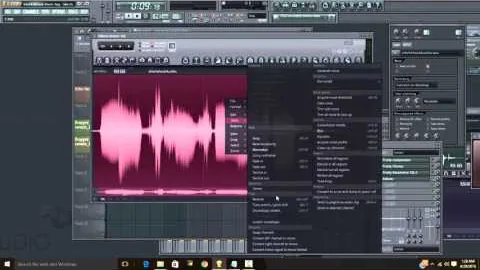
KnockSquared’s reverse-reverb video shows the process in FL Studio; reversing, rendering and moving audio work the same way in other editors. Follow the arrival of the normal word in the audio example above.[17]
Turn the first syllable into rhythm
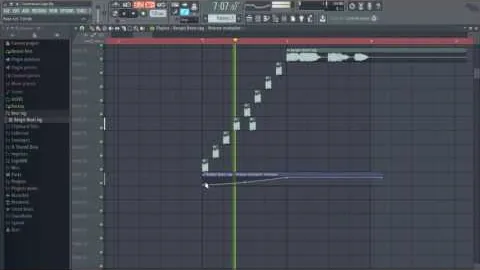
Slice a recognizable part of the first word and place two or three repeats before the full phrase. Try an eighth- or sixteenth-note grid. Fade each slice edge, then listen at normal speed. A slice that is too short becomes a tick; one that is too long can overlap the next hit.
Keep the main name’s arrival clear. If the pattern makes it feel late, remove a repeat or start the pattern earlier. A gradual volume rise can build into the full voice. The player opens at the creator’s stutter chapter, 2:00.[18]
A supporting layer or a filtered tone
Transcript / audio description
Spoken words: “Voice Tag Gods.” The voice plays with a lower-pitched copy.
Transcript / audio description
Spoken words: “Voice Tag Gods.” The source voice is narrowed to a telephone-style frequency range.
Try pitch or filtering

For a low double, pitch a copy down a few semitones while preserving its length, then mix it quietly under the lead. Check that the letters still land together. Pitch changes how high or low the voice sounds; formant controls change its apparent vocal character.
For a telephone sound, combine high-pass and low-pass filters on a copy. Roughly 300 Hz to 3 kHz is an obvious starting effect; widen the range if the name becomes unclear.
For movement, automate a filter’s cutoff so the tone changes during the phrase. Try opening a low-pass filter toward the stressed word, letting more high frequencies through. In FL Studio, right-click a native filter control, choose Create automation clip, then draw the change in the Playlist. Keep the name clear throughout the sweep.[2][19]
Add character with saturation
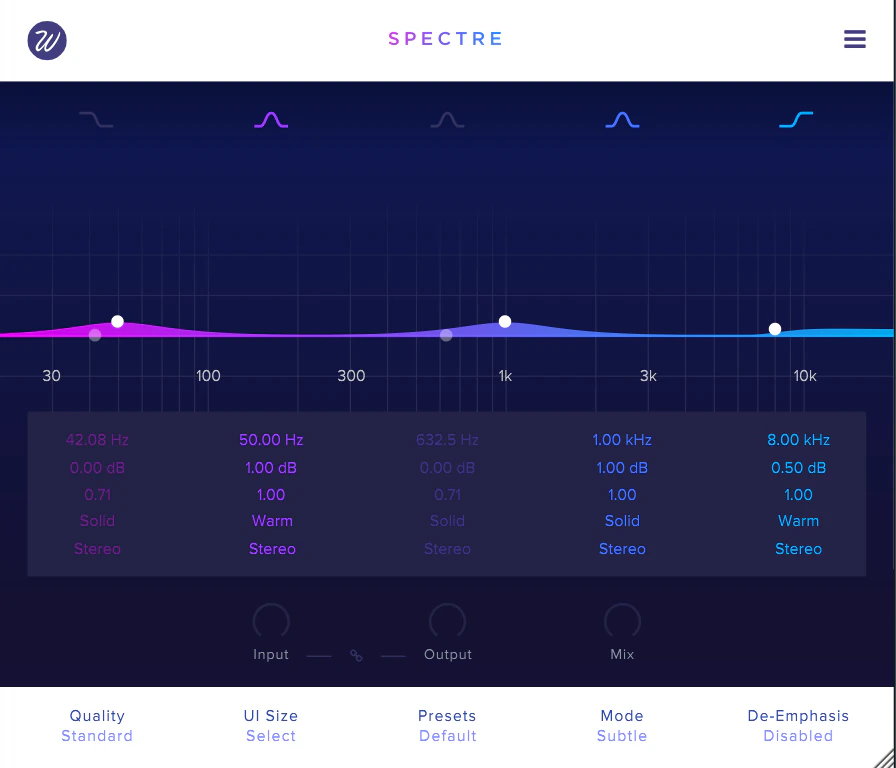
Saturation adds harmonics that can give a voice more edge or weight. Wavesfactory Spectre lets you target that treatment by frequency, using an EQ-style display and a separate saturation type for each band.[20]
Start with a small boost in one band and compare at a similar volume. Lower the band gain or Mix if consonants become scratchy or the voice loses clarity. In Spectre, De-Emphasis compensates for the EQ boost after saturation; it is disabled in this screenshot.[20]
An ending effect or extra width
Transcript / audio description
Spoken words: “Voice Tag Gods.” The phrase receives a slowing tape-stop ending.
Transcript / audio description
Spoken words: “Voice Tag Gods.” The phrase receives stereo widening.
A tape stop slows playback, dropping the ending in pitch and speed. Try it after the recognizable part of the name. For width, experiment on a quieter layer or the returns while keeping the main phrase centered. The next step’s mono check will tell you whether that wide sound survives on one speaker.
7. Place the name and check the transition
Loop the lead-in and the first bars after the drums enter. Find the stressed word and move it to the musical accent you want. The start of the file may be silence or a reverse swell, so snapping that file edge to the grid can put the actual name in the wrong place.
The same tag, placed differently
Transcript / audio description
Spoken words: “Voice Tag Gods.” The final WET tag from the opening comparison meets the drum entrance in an excerpt of the beat.
Transcript / audio description
Spoken words: “Voice Tag Gods.” The same final WET tag and beat excerpt, with the tag shifted 250 milliseconds later.
Follow the last word against the drums in On beat and Late. Both use the finished Wet tag from the opening comparison over a short section of the beat. The beat and processing stay the same; Late moves the tag a quarter of a second later. Use the waveforms to seek back to the entrance and hear the difference.[1]
Check width in mono
Turn playback down and check whether the name remains clear. Compare stereo and mono at a similar level. If a wide layer becomes thin or quieter in mono, reduce its widening or lower it beneath the centered voice.[21]
Check headphones, a small speaker and the full transition into the music. If the name disappears, lower the effects before adding more treble.
8. Export versions you can reuse
Keep the original recording, an edited dry voice and a finished wet tag. The dry version keeps the useful repairs and cuts without the creative echo or reverb. It lets you adapt the sound to another beat. Label the wet file with its tempo when it has printed rhythmic effects.
Check the files you will actually use
Export WAV at the project’s sample rate
24-bit is a useful working format. Include the lead-in and allow the effect tail to finish; use a leave-remainder or equivalent tail option when available.
Keep the beat out of the tag export
Render only the intended vocal and effects paths. If exporting a bus, verify that its returns are included.
Reopen the dry and wet files
Listen from the first sample through the final echo. Check the complete name, clean joins, no clipping, and no abrupt tail cutoff.
Try the wet file in a second beat
Line up the spoken accent and check the balance. Rebuild effects from the dry file if the old delay timing or long reverb gets in the way.
Keep WAV as the working copy and make a smaller compressed file only for a preview or upload that needs one. Save the editable project too, so your next version starts with the recording and decisions still available.[22]
If the tag still sounds wrong
| Problem | First check |
|---|---|
| Missing first letter | Restore space before the cut and shorten the fade. |
| Thin voice | Ease the high-pass filter or deep low-mid cuts. |
| Harsh esses | Reduce bright EQ or distortion, then adjust local gain or de-essing. |
| Watery voice | Back off noise reduction or return to a cleaner take. |
| Echo over the next word | Lower feedback, change timing or echo only the final word. |
| Effects missing from the export | Check the selected tracks, returns and render range. |